Tenant change
Changing tenants has never been this easy. The digital key handovers simplifies administration and makes the hand-off process much easier.
With resivo residential by dormakaba

Its modular and flexible architecture means that future digital use cases can be easily connected to the system.
Lean digital processes. No longer any need to replace cylinders if a key is lost.
Smart features reduce vacancy rates and generate added value.
New properties can be outfitted and updated based on customer requirements. Existing properties can be upgraded at any time.
High levels of competence from dormakaba, your trusted supplier of sustainable technology and ecosystems.
Tenants enjoy using a highly flexible and modern access solution, which reflects well on the building owners.
Previous tenants don’t have access to the apartment and the hassle of missing keys is a thing of the past.
Tenants decide for themselves who should have access to their premises and when. This can also be time limited, for example, for cleaning staff.
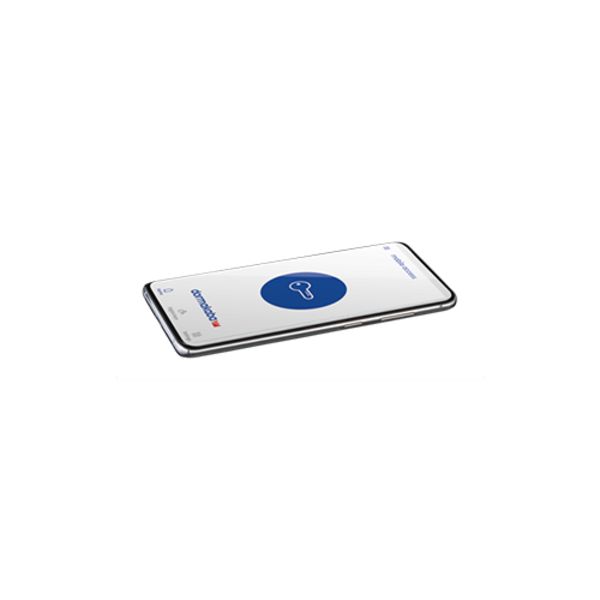
Access control via the intuitive resivo home app for tenants.
Tenants can grant temporary access for service providers such as package deliverers, medical support or contractors.
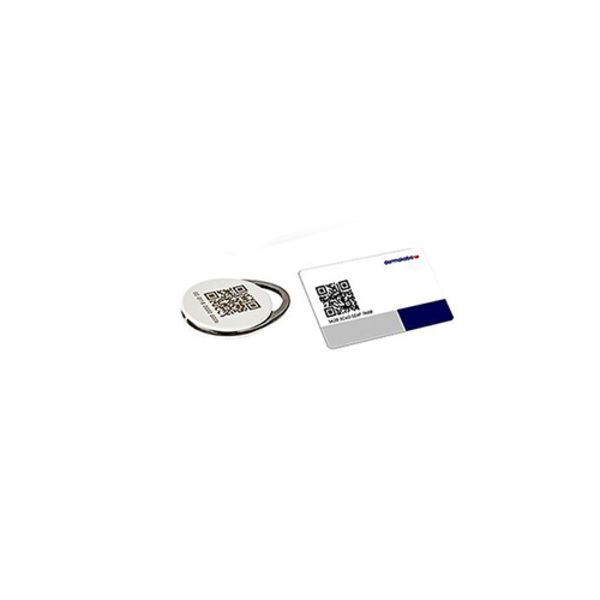
Whichever medium you opt for – key, chip, RFID card or smartphone – access can be extended, combined and deleted immediately in case of loss.
Lean digital processes. No longer any need to replace cylinders if a key is lost.
Digital and keyless – no complex key management.
Tenants decide for themselves who should have access to their premises and when.
Access control via the intuitive resivo utility app for building administrators.
Lean digital processes. No longer any need to replace cylinders if a key is lost.
Smart features reduce vacancy rates and generate added value.
New and existing properties can be outfitted and updated as required.


but jointly used doors are already integrated in the indirectly linked system.»
Do you have any questions about resivo residential or dormakaba in general? We are happy to assist you in person. Simply click this field, fill out the contact form, and we will get in touch with you shortly.
Contact us
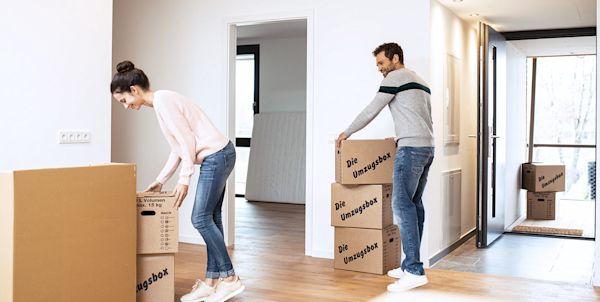
Changing tenants has never been this easy. The digital key handovers simplifies administration and makes the hand-off process much easier.
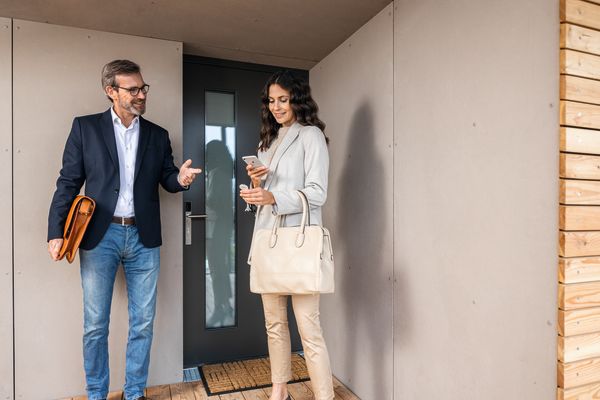
No problems with lost smartphones, access cards, key rings. Lost access media can be deleted and re-issued immediately.
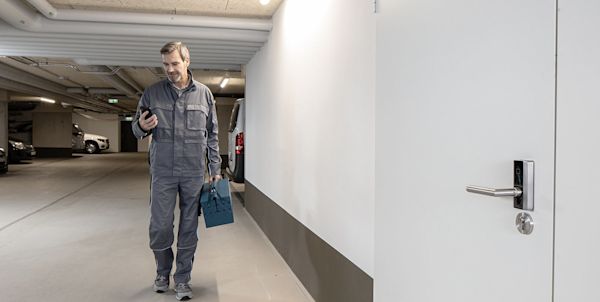
Provide access to service and maintenance personnel for many units remotely. For one-time or recurring servicing of the building or infrastructure.
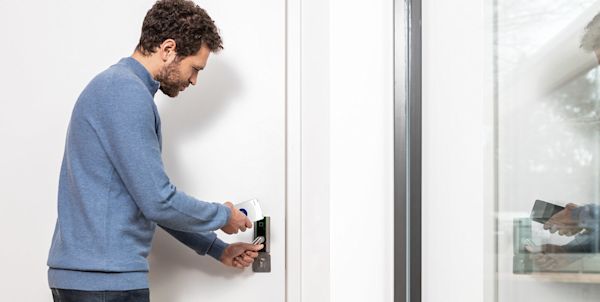
You can let event and storage spaces or single rooms online individually, for a limited time or long-term.

During holidays or other absences, access to particular rooms can be assigned remotely for a limited time period.
Click here to discover properties, buildings and real estate where resivo residential is already being used easily and profitably. Learn about the system’s exceptional versatility.
Our Products
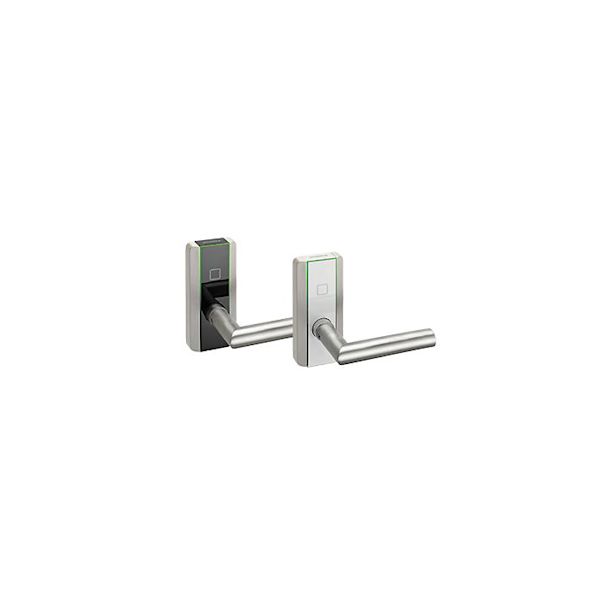
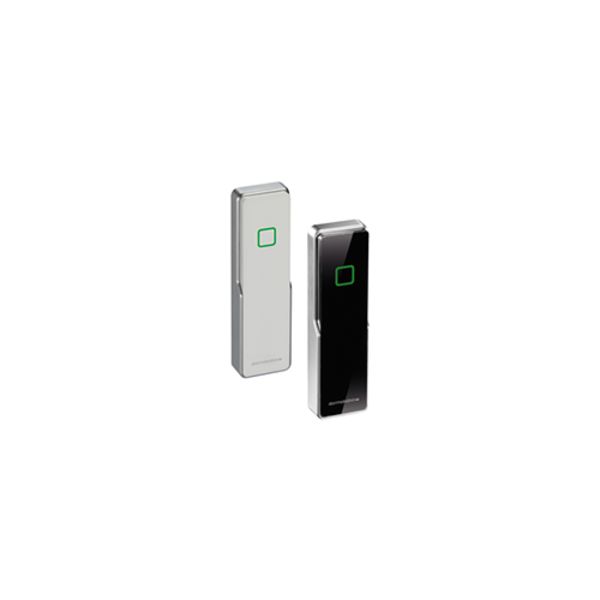
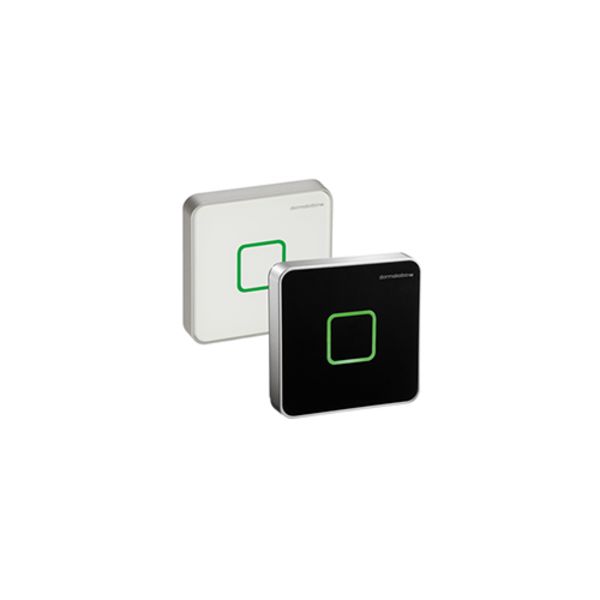
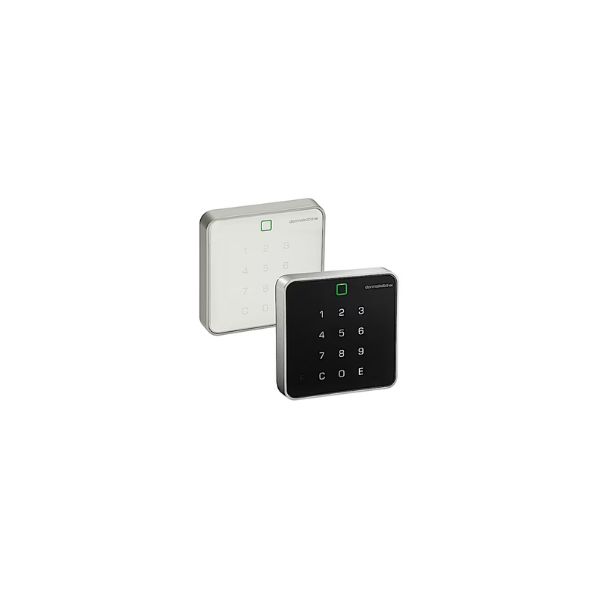
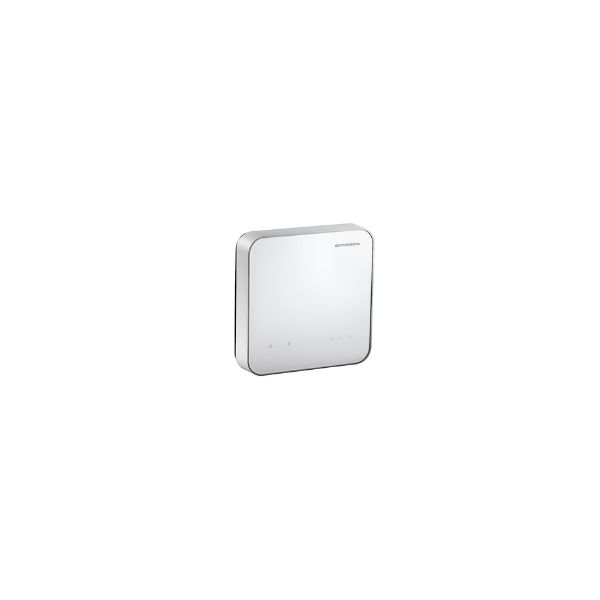
Explore our selection of wirelessly connected door locks, cylinders, readers, and credentials. Get the resivo-compatible door components from your certified dormakaba partner, who will assist with installation, service, and ongoing support.
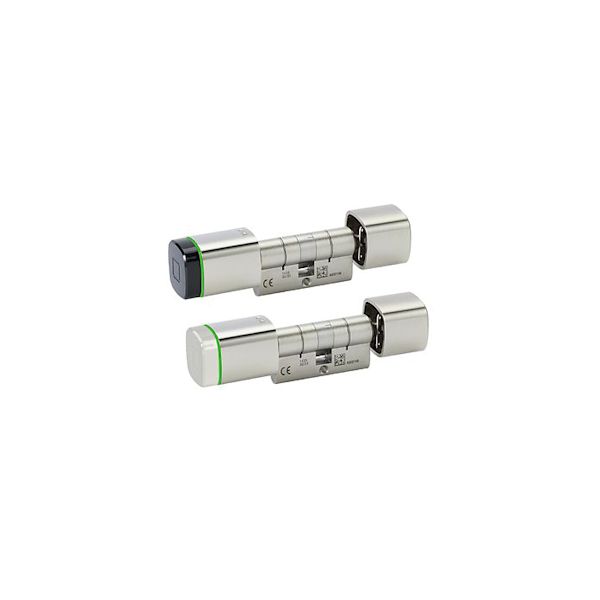
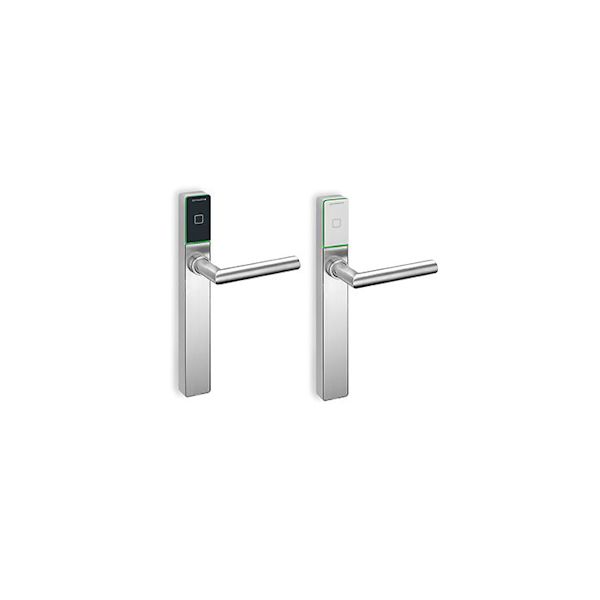
The convenient app for digital access management. Download the apps «dormakaba resivo home» and «dormakaba resivo utility» free of charge:
The invitation code is a code for activating the resivo home app. You will receive the invitation code from the facility management when you move into your rental property. This is valid once and for 30 days. The facility management can send another invitation code with a validity of 48 hours.
In order to use the resivo home app, your facility management must use resivo residential as an access system. When you move into your rental property, your facility management will activate the rental contract and send you an invitation code.
Housemates are persons who live in your household and also use the resivo home app.
Install the resivo home app on your new smartphone and log in with your email address and your password. Then the identification files are automatically downloaded, and you can fully use the app.
Only persons to whom you grant access can enter your rental property. The persons with authorized access are displayed in the app in the menu Keys or Housemates.
Please contact your facility management immediately. You can find the telephone number in the resivo home app.
Open the resivo home app.
In the menu, tap Settings.
Tap Contact facility management.
Please contact your facility management immediately. You can find the telephone number in the resivo home app.
Open the resivo home app.
In the menu, tap Settings.
Tap Contact facility management.
The component (e.g., digital cylinder) of your rental property door has a battery that can be checked regularly. Therefore, you can open your door with an access medium or digital key in the event of a power failure as well.
The invitation code has a limited validity. If your invitation code has expired, please contact your facility management. You can find the telephone number in the resivo home app.
Open the resivo home app.
In the menu, tap Settings.
Tap Contact facility management.
You have the option of sending digital keys or adding access media in your app. To do so, tap the + symbol in the Keys menu below.In case of access media and digital keys, you have the option of restricting the access as per your requirements.
You can send digital keys to a phone number any time. The recipient can use the key with the dormakaba mobile access app at your specified time.
In the Keys menu, tap the + symbol and then Send digital key.
Give a name to the key.
Enter the telephone number of the recipient (incl. country code).
If desired, add access restrictions.
Tap Send digital key. => The key is now active and visible in your key list. => If you do not enter any restrictions, the key is valid with immediate effect until you revoke the key or remove it from the rental property.
You have received access media (keycard or key fob) from your facility management. You can add these in your app and, if desired, restrict the access to a certain time.
In the Keys menu, tap the + symbol and then Add access medium.
Hold the camera in such a way that it sees the QR code of the access medium.
Give a name to the key.
If desired, add access restrictions.
Tap Create key.
Tap Update now so that the access medium becomes active. => The access medium is now active and visible in your key list.
You can revoke the digital key at any time.
Open the resivo home app.
Tap Keys in the menu.
Select the digital key from the list.
Scroll down.
Tap Revoke key. => The deactivation of the digital key is started. => As soon as the recipient opens the mobile access app or reloads the key list, the digital key appears in the list of inactive keys.
It can take a moment until a digital key is deactivated. If there is an emergency and the digital key needs to be deactivated immediately, do as follows:
Open the resivo home app.
Tap Keys in the menu.
Select the digital key with the Deactivation in progress status.
Scroll down.
Tap Block number.
Select the corresponding door, and follow the steps in the app. => The digital key is visible in the list of inactive keys.
Attention: The phone number of the owner of the digital key is now permanently blocked. The phone number can be unblocked again later.
You can block the access medium at any time in the resivo home app.
Open the resivo home app.
Tap Keys in the menu.
Select the lost access medium from the list.
Scroll down.
Tap Revoke key.
Tap Update now to deactivate the access medium and follow the instructions in the app. => The access medium is shown in your list of inactive keys in the Keys menu.
You can continue to enter the rental property with the existing keys and send a digital key. However, it is no longer possible to add, edit and delete access media.If you lose the access media, contact your facility management so that your rental property remains safe. You can find the telephone number in the resivo home app.
Open the resivo home app.
In the menu, tap Settings.
Tap Contact facility management.
Get answers in the resivo residential help center: One click to lots of answers.
Before you update or commission a door, it is checked if you are standing in front of the correct door. This avoids configuring wrong door by mistake. If the app says that you are standing in front of the wrong door, the physical component has been linked incorrectly. You can revoke the link (unmap) and create it again (map) by selecting the door and then pressing the red button.
"Map" and "Unmap" do not affect the access or the configuration of the door. The actions are only for creating and revoking a link.
Move-in is possible when the symbol “outlined house with arrow” appears in the rental property list.
Open the resivo utility app and log in.
Select the rental property.
Check if a tenant setup card is present.
Check if all doors are present.
Add the necessary access media.
Tap Move in.
Follow the steps in the app.
=> When the process is successfully carried out, the symbol “house, filled in blue” appears.
Open the resivo utility app and log in.
Select the rental property.
Scroll down.
Tap Move out.
Follow the steps in the app.
Completely close the resivo utility app and open it again.
Log in.
Select the real estate. => A progress bar should appear.
Select the rental property in question.
Tap Complete move in/move out.
If the problem continues to exist, contact your dormakaba contact person.
Open the resivo utility app and log in.
Select the real estate.
Tap Doors in the menu.
Tap Unlock.
Open the resivo utility app and log in.
Select the real estate.
Select the rental property.
Unmap the defective rental property door.
Now you must replace the door components and then commission the new door components. If the rental property is rented, you need the tenant setup card for this.
Select the rental property.
Select the door and map it with the physical component.
Follow the steps in the app. => If the process is successfully carried out, the rental property door appears in the list with a blue symbol.
If the tenant uses the resivo home app, you can provide them new access media.
If the tenant does not use the resivo home app, you need to register the access media. For this you need the tenant setup card, and you must be on site.
Open the resivo utility app and log in.
Select the real estate.
Select the rental property.
Scroll down till you reach Keys.
Tap Add key.
Scan the key.
Tap Add.
Update the door by following the steps in the app. => The new access media are active.
If the tenant uses the resivo home app, they themselves can remove the access medium.
If they do not use the resivo home app, then carry out the following steps:
Open the resivo utility app and log in.
Select the real estate.
Select the rental property in question.
Delete the access medium from the list.
Update the door. For this you need the tenant setup card, and you must be on site. => The access medium has been successfully deleted.
The rental property can still be entered with existing access media or digital keys. However, the tenant can no longer add, edit, or delete any access media. Therefore, it is recommended to take care of it promptly.
Arrange a meeting with the installation partner to reset the door component to factory settings. For this, ensure that the tenant still has at least one authorized key.
Our aim is to accompany your journey to a seamless and secure access solution, providing guidance and support every step of the way. We look forward to hearing from you.

Your resivo residential team